
Blade Tracer
Bagisto's Blade Tracer is a powerful developer tool that visually highlights Blade template paths directly in your browser, making it incredibly easy to identify and locate the source files for any rendered view.
What You'll Learn
- Enabling and disabling the Blade Tracer
- Understanding the tracer overlay interface
- Using the tracer to locate view files quickly
- Best practices for development workflow
- Performance considerations
Introduction
When developing themes or customizing views in Bagisto, one of the most common challenges is identifying which Blade template file is responsible for rendering a specific part of the page. The Blade Tracer solves this problem by adding visual indicators to every template block, showing you exactly which file is being rendered.
Key Benefits:
- Instant View Discovery: Quickly identify which Blade template renders any element
- Faster Development: Eliminate time spent searching for view files
- Visual Debugging: See the template structure at a glance
- Path Highlighting: Get complete file paths for all rendered views
- Click to Navigate: Easily locate files in your codebase
Integration with Theme Development
The Blade Tracer is especially useful when working with:
- Custom Theme Packages - Identify template override locations
- Understanding Layouts - Visualize layout structure
- Blade Components - Find component template files
Enabling Blade Tracer
The Blade Tracer is controlled by a simple configuration setting in your config/view.php file.
Configuration
Open your config/view.php file and locate the tracer key:
<?php

return [
    /*
    |--------------------------------------------------------------------------
    | Blade File Tracer
    |--------------------------------------------------------------------------
    |
    | Shows blade file path in front
    |
    */

    'tracer' => false,

    ...

];
Enable the Tracer
To enable the Blade Tracer, simply change the tracer value to true:
'tracer' => true,Disable the Tracer
To disable the tracer (recommended for production), set it back to false:
'tracer' => false,Production Environment
Always disable the Blade Tracer in production environments. The tracer is intended for development use only and can expose your application's internal structure and file paths to users.
Using the Blade Tracer
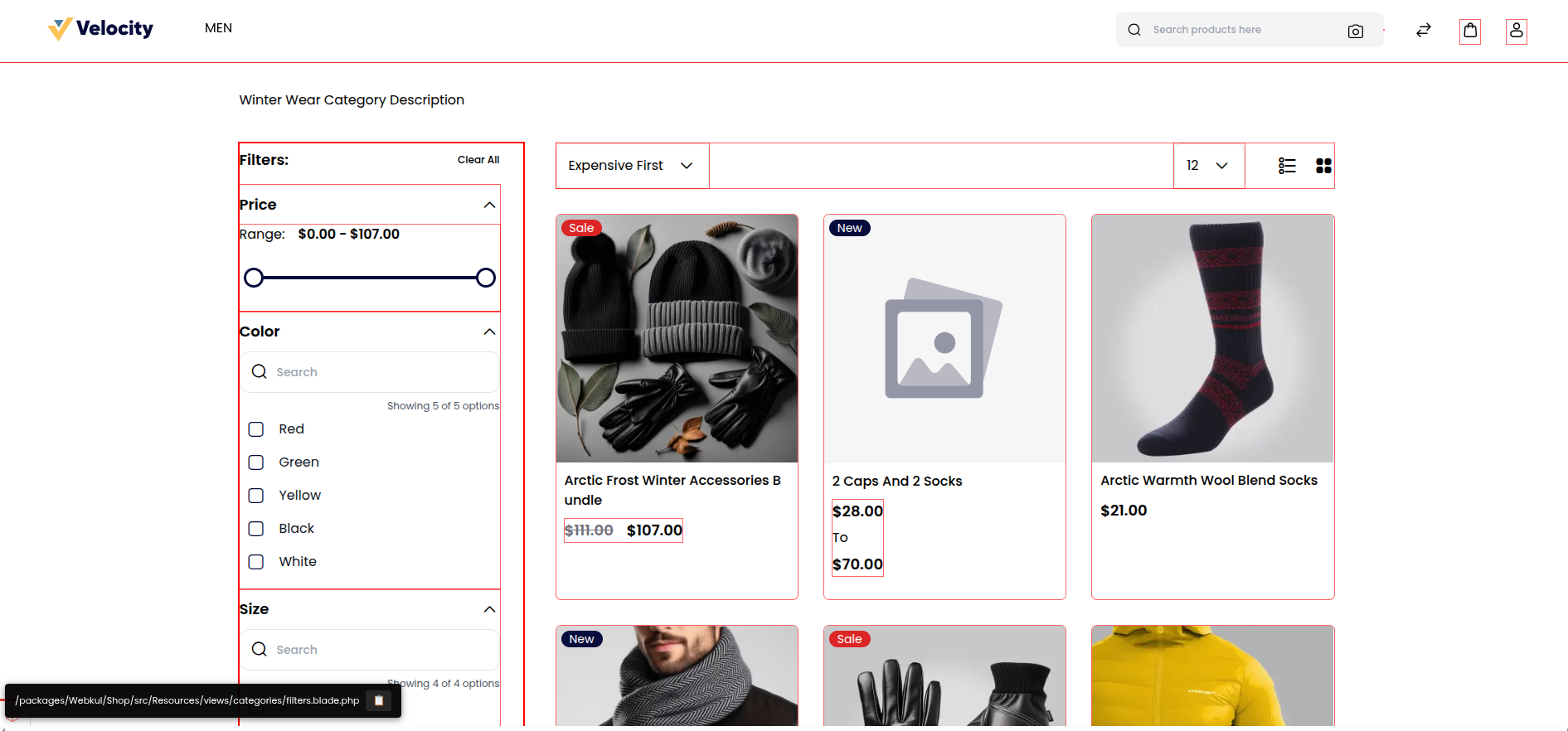
Once enabled, the Blade Tracer automatically highlights all rendered Blade templates on your pages.
Visual Indicators
When the tracer is active, you'll see:
- Outlined Blocks: Each Blade template is surrounded by a colored outline
- Path Labels: Hover indicators showing the complete file path
Identifying View Files
To find the source file for any element on your page:
- Hover over the element: The tracer will highlight the containing template block
- Read the path: The full file path will be displayed
- Navigate to the file: Use the path to open the file in your editor
Quick Copy Path
Press Ctrl + Shift + C (or Cmd + Shift + C on Mac) while hovering over a traced element to quickly copy the file path to your clipboard. This makes it even faster to navigate to the exact file in your code editor.
Example Workflow
Here's a typical workflow using the Blade Tracer:
Step 1: Enable the Tracer
// config/view.php
'tracer' => true,
Step 2: View Your Page
Navigate to any page in your Bagisto application (shop or admin).
Step 3: Identify Elements
Hover over any part of the page to see which Blade template is rendering it.
Step 4: Make Changes
Open the identified file in your editor and make your customizations.
Step 5: Refresh and Verify
Refresh the page to see your changes and verify using the tracer.
Best Practices
Development Workflow
- Enable Selectively: Only enable the tracer when you need it
- Use with Browser DevTools: Combine the tracer with browser inspector for maximum efficiency
- Document Findings: Keep notes on frequently modified templates
- Team Communication: Share tracer insights with your development team
Performance Considerations
The Blade Tracer adds minimal overhead, but for optimal performance:
- Disable in production: Always turn off for live sites
- Disable when not needed: Turn off during performance testing
- Use with caching: The tracer works with Blade caching
Performance Impact
The Blade Tracer has negligible impact on development performance. It adds small HTML comments and attributes to the rendered output but doesn't affect compilation or rendering speed significantly.
Troubleshooting
Tracer Not Working
If the tracer isn't showing:
Clear Configuration Cache:
php artisan config:clearVerify Configuration:
php artisan config:cacheCheck Browser Cache: Clear your browser cache and do a hard refresh (Ctrl+F5 or Cmd+Shift+R).
Missing Path Information
If paths aren't displaying correctly:
- Check Browser Console: Look for JavaScript errors
- Verify View Registration: Ensure your views are properly registered
- Clear View Cache: Run
php artisan view:clear
Conflicts with Custom CSS
If the tracer outlines interfere with your layout:
- The tracer uses minimal styling and should not affect layout
- Check for CSS specificity conflicts
- Temporarily disable custom CSS to isolate the issue
Security Considerations
Security Warning
Never enable the Blade Tracer in production environments. Doing so could expose:
- Internal file paths and directory structure
- Package names and versions
- Application architecture details
- Potential security vulnerabilities
Conclusion
The Blade Tracer is an invaluable tool for Bagisto theme developers, significantly reducing the time spent searching for template files and improving overall development efficiency. By following the best practices outlined in this guide, you can leverage the tracer to accelerate your theme development workflow while maintaining security and performance.